

Instagram Highlights are a feature that allows users to showcase their favorite Stories permanently on their profile. Unlike regular Instagram Stories that disappear after 24 hours, highlights remain visible until you choose to remove them. Many users often ask how many highlights can you have on Instagram, as this helps them plan and organize their profile content effectively. Understanding the purpose and limits of Highlights ensures you can make the most of this feature and keep your profile engaging.
In this article, videodownloadapp.us will explain how many highlights you can have on Instagram.
How Many Stories Can You Have In a Highlight on Instagram?
Many users wonder how many highlights can you have on Instagram and how many stories each Highlight can hold. While there’s no official limit to the number of Highlights you can create on your profile, each individual Highlight can contain up to 100 stories, including photos and videos. If you try to add more than 100 stories, Instagram automatically starts a new Highlight to accommodate the extra content.
Understanding these limits helps you plan your content effectively, organize your profile neatly, and make the most out of your Instagram Highlights.
How to Manage and Edit Highlights on Instagram
Instagram Highlights let you showcase your favorite stories on your profile. Many users wonder how many highlights can you have on Instagram. While there’s no official limit, managing highlights well—adding or removing stories, customizing covers, and controlling visibility—helps keep your profile organized and attractive.
How to Add, Remove, or Edit Stories within Highlights on Instagram
Add Stories to an Existing Highlight
- Step 1: Open your Instagram profile and long-press the Highlight you want to edit.
- Step 2: Tap “Edit Highlight”.
- Step 3: Select “Stories” to add more stories from your archive.
- Step 4: Choose the stories you want to include and tap “Done”.
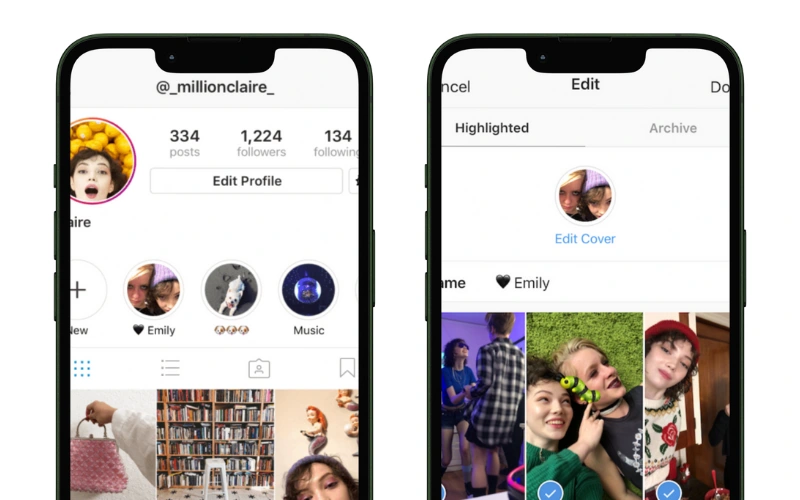
Remove Stories from a Highlight
- Step 1: Open your profile and long-press the Highlight you want to edit.
- Step 2: Tap “Edit Highlight”.
- Step 3: Uncheck the stories you want to remove.
- Step 4: Tap “Done” to save changes.
Edit Highlight Name or Cover
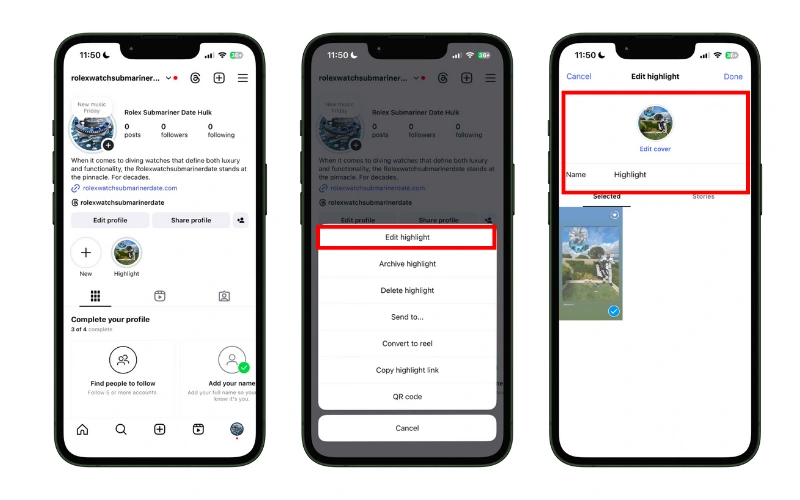
- Step 1: Long-press the Highlight and select “Edit Highlight”.
- Step 2: Enter a new name in the “Name” field.
- Step 3: Tap “Edit Cover” to choose a new cover image from your library.
- Step 4: Tap “Done” to save.
Customizing Cover Images and Titles for Highlights on Instagram
Create a Custom Cover Image
- Step 1: Use tools like Canva to design a cover image for your Highlights.
- Step 2: Customize with icons, colors, or text that matches your brand or style.
- Step 3: Save the image to your device and upload it as the Highlight cover.
Set a Clear Highlight Name
- Step 1: Highlight names are limited to 15 characters, but only the first 9 may appear on your profile.
- Step 2: Keep names short, descriptive, and relevant to the content.
Readmore: How to download 1 min reel on Instagram
Archive and Privacy Settings Affecting Visibility of Highlights on Instagram
Using the Story Archive
- Step 1: Ensure “Save story to archive” is enabled in Settings > Privacy > Story.
- Step 2: Access archived stories from your profile via Archive.
- Step 3: Add archived stories to existing or new Highlights as needed.
Control Who Can See Highlights
- Step 1: Hide Highlights from specific users via Settings > Privacy > Story > Hide Story From.
- Step 2: Share stories with Close Friends and add to Highlights for selective visibility.
- Step 3: Private accounts automatically restrict Highlights to followers only.
Readmore: How to download Instagram reels without third party app
How to Save Instagram Highlights to Your Phone Gallery
If you want to download Instagram highlights to your phone gallery, Clippy makes the process simple and fast. You can easily download Instagram highlights to my phone gallery using Clippy. Follow these simple steps:
- Step 1: Copy the Highlight link from the Instagram Website.
- Step 2: Open Clippy in your mobile browser.
- Step 3: Paste the link into the app and tap Download.
- Step 4: The Highlight will be saved directly to your phone gallery.
Note: You can only download Highlights from public accounts. Private or restricted profiles cannot be saved using this method.
In conclusion, understanding how many highlights can you have on Instagram helps you organize your profile efficiently and showcase your best stories. By knowing the limits, customizing covers, and managing your story content wisely, you can create a polished and engaging profile. Use these tips to make the most of your Instagram Highlights and keep your audience engaged.
