

Are you frustrated because Instagram can’t save video directly to your device? Many users face this issue when they want to download and rewatch clips offline. Whether it’s due to app limitations, privacy settings, or technical errors, the problem is common but has practical solutions. In this guide, videodownloadapp.us will explain why Instagram can’t save video and show you the best ways to fix it easily.
1. Why Can’t Instagram Videos Be Saved?
Below are some common reasons that lead to the error of Instagram not saving videos, which you might be experiencing:
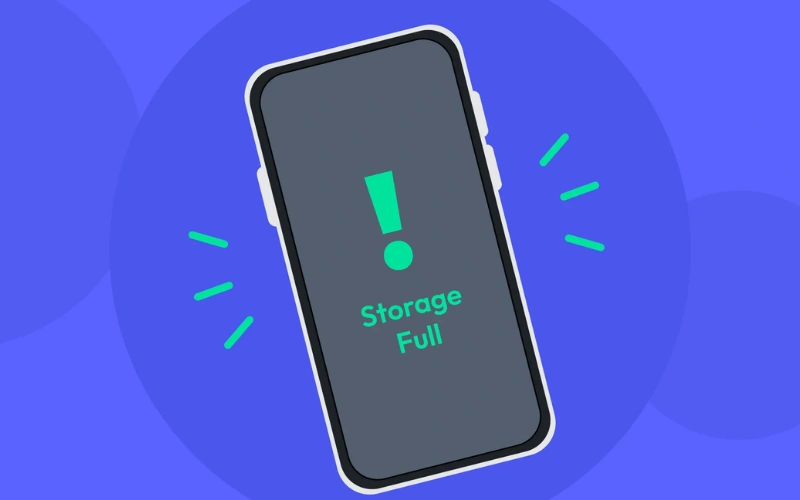
1.1. Device Storage Is Full
When your phone runs out of storage, Instagram can’t save video to your device. To solve this issue, simply clear up space by removing unused apps, deleting large files, or transferring data to the cloud. This quick fix will allow the Instagram app to download and save videos smoothly again.
1.2. Incorrect Saving Procedure
Sometimes, Instagram can’t save video simply because the saving steps were not followed correctly. Double-check your process to ensure you tapped the “Save” option and waited until the download was fully completed. This small adjustment can often solve the problem instantly.
1.3. Instagram App Errors
At times, Instagram can’t save video because the version installed on your phone may be facing temporary technical glitches. You can fix this by restarting the app, rebooting your device, or updating Instagram to the latest version for smoother performance.
1.4. Software Conflicts
Some other apps installed on your phone may conflict with Instagram, affecting its performance and features, including the ability to save videos.
Readmore: How to download 1 min reel on Instagram
1.5. Cache Is Full
When using Instagram, it stores a large amount of temporary data (cache) to access faster. However, when this cache becomes too full or corrupted, it can prevent new videos from being saved. Clearing Instagram’s cache is often an effective solution.
1.6. Access Permissions Not Granted
If Instagram can’t save video to your photo library, it’s often because the app does not have permission to access it. When this permission is disabled or denied, videos will not be saved to your device. To fix the issue, go to your phone’s settings and enable Instagram’s access permission again.
2. How to Fix Instagram Not Saving Videos and Photos
Below are thorough ways you can try to completely fix the issue of Instagram not saving videos and photos. Each method has its own advantages, and you should try them in order from simple to more complex to find the best solution.
2.1. Restart Your Device
Restarting your phone is one of the easiest ways to fix software glitches. If Instagram can’t save video or photos, a quick restart can refresh the system, free up RAM, and clear temporary errors that may cause Instagram to malfunction.
After restarting, open Instagram again and try to save the video or photo.
2.2. Uninstall and Reinstall the App
If restarting doesn’t work, try uninstalling and reinstalling Instagram. This will give you a clean version of the app, removing any corrupt data or files that could be blocking the save function. Before doing this, make sure you remember your login information so you can log back in after reinstalling.
2.3. Delete Some Videos and Photos From Your Gallery
A full phone memory is one of the most common reasons why Instagram can’t save video. The app requires enough free storage to download and process new files. To fix this, delete unnecessary photos, videos, or apps to free up space on your device.
2.4. Clear Instagram Data and Cache
Cache is temporary data stored to help the app load faster. However, if the cache is too large or corrupted, it can cause many issues. Go to the Instagram app settings on your phone (for Android) to clear the app’s data and cache. This will not delete your account but can help fix the error.
Readmore: How to download Instagram reels without third party app
2.5. Update to the Latest App Version
Using an old version of Instagram can cause issues, including the error where Instagram can’t save video. Developers often fix such bugs in newer updates, so keeping the app up to date helps you avoid errors and enjoy the latest features. Check the App Store or Google Play Store to ensure your Instagram app is updated.
2.6. Use Online Tools to Download Instagram Videos When Errors Occur
In addition to the solutions above, using online tools is an effective fallback option. These websites allow you to download Instagram videos easily without relying on the app. Simply copy the video link, paste it into the tool, and save it to your device. Some popular tools include: SnapInsta; SaveFrom; sssInstagram,…

Besides its web tool, TCC & Partners has also developed a mobile app called Clippy, available on both CH Play and the App Store. Clippy allows users to download Instagram videos without watermarks in just one tap.
It’s 100% free, offers fast download speeds, no ads, and supports HD quality – giving users a smooth, safe experience right on their phone.
How to use Clippy – Quick Steps:
- Step 1: Download Clippy from CH Play (Android) or App Store (iOS).
- Step 2: Copy the video link from Instagram.
- Step 3: Open Clippy and paste the link.
- Step 4: Choose the quality, and download the video instantly.
Hopefully, with the detailed guidance from Clippy, you now know how to successfully fix the issue of Instagram not saving videos. Regularly updating the app, clearing device storage, and using additional video downloading tools will help you enjoy a smooth Instagram experience and easily preserve all important moments.
