

If you’ve ever wondered how to convert YouTube video to MP3 on Mac, one smart way is using apps like Pulltube or Permute to handle audio extraction directly. These tools let you paste video links, choose output formats like MP3, and convert without losing quality. In this article, videodownloadapp.us will introduce this method and show how it fits into a full guide for converting media files on macOS.
But before we get into the details, here’s an overview of how you can convert files on a Mac:
| Ways to convert files on Mac | How to do it |
| Finder | Right-click video file > Encode Selected Video Files > Settings > Audio Only. |
| QuickTime Player | Open the video > Go to File > Export As > Choose format and resolution. |
| Permute | Drag file into app > Select output format > Click Start. |
| Pulltube | Paste video link > Choose format (MP4/MP3) > Click Download. |
| Online Converters | Visit site (e.g., YTMP3, Zamzar) > Upload or paste link > Choose format > Convert. |
1. How to Convert YouTube Video to MP3 on Mac
If you’re wondering how to convert YouTube video to MP3 on Mac, the first step is to download the YouTube video to your Mac using a trusted downloader tool. Once the file is saved locally, you can easily turn it into audio with QuickTime Player, which comes pre-installed on macOS. Although QuickTime’s features are limited, it’s a safe and straightforward way to extract audio.
Steps to Convert Video to Audio on Mac with QuickTime:
- Step 1: Download the YouTube video to your Mac.
- Step 2: Open the video file in QuickTime Player.
- Step 3: Click on the File menu and select Export As.
- Step 4: Choose Audio Only from the export options.
- Step 5: Name your file and pick the location where you want it saved.
- Step 6: Click Save.

QuickTime will create an audio file (in M4A format) in the location you selected, leaving the original video untouched. This method is ideal if you want a quick solution for how to convert YouTube video to MP3 on Mac without installing additional software.
Readmore: Why Youtube is not working on iphone
2. Using Top Online Websites for Converting YouTube Videos to MP3 on Mac
If you prefer a quicker, no-install solution, you can also use top online websites to convert YouTube videos to MP3 on your Mac.
2.1. Y2Mate
If you’re looking for a quick way on how to convert YouTube video to MP3 on Mac, Y2Mate is one of the most popular online tools available. It allows you to convert and download YouTube videos as MP3 or MP4 files without installing any software. With a simple interface and support for multiple formats, Y2Mate is often recommended as a convenient option for those who need fast downloads. It can also be considered among the best YouTube to MP3 converter for Mac for users seeking a free, browser-based solution.

Pros:
- Free and no registration required: Convert and download videos without creating an account.
- Supports multiple formats: MP3, MP4, M4A, WAV, AVI, FLV, WebM, and works with YouTube, Vimeo, Facebook, and Dailymotion.
- Fast processing: Operates online, providing quick conversion and download.
- Cross-platform compatibility: Works on Mac, Windows, Linux, Android, and iOS through any modern browser.
- Multi-language interface: Supports 21 languages for global users.
Cons:
- Ads and pop-ups: The site has many ads that can be distracting or potentially unsafe.
- Privacy concerns: May collect user data and share with third parties.
- Legal considerations: Downloading copyrighted content without permission may violate copyright laws.
- Limitations on long videos: Some users report issues with very long videos or missing subtitles.
2.2. EzConv
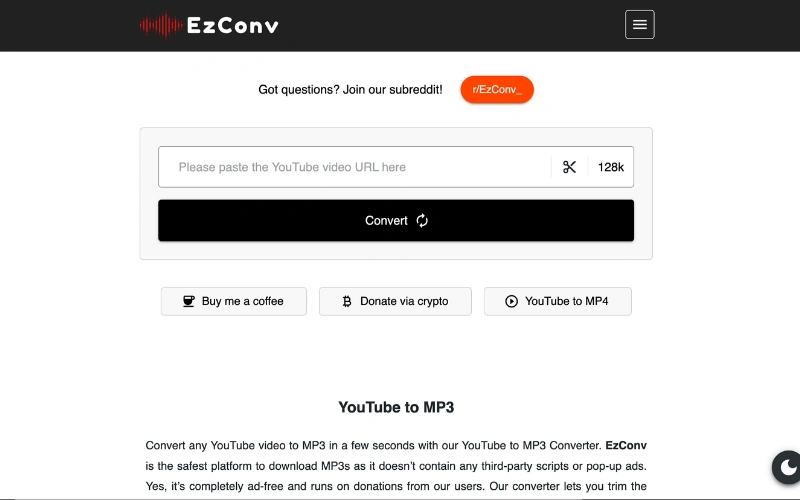
EzConv is a free, browser-based tool that lets you convert YouTube videos to MP3 on Mac, making it perfect for anyone looking for a quick solution. If you’re trying to learn how to convert a youtube video to mp3 on mac, EzConv provides an easy, no-install way to extract audio from YouTube videos.
How to convert YouTube video to MP3 on Mac using EzConv
- Step 1: Copy the YouTube Video URL – Go to the video you want to convert and copy its link. This is the first step when figuring out how to convert YouTube video to MP3 on Mac.
- Step 2: Visit EzConv – Open your browser and go to EzConv
- Step 3: Paste the URL – Paste the copied link into the input field on the website.
- Step 4: Select Audio Quality – Choose your preferred quality (64 kbps to 320 kbps).
- Step 5: Convert and Download – Click Convert, then Download MP3 to save the audio file to your Mac. This step completes the process of how to convert a youtube video to mp3 on mac.
Pros:
- Ad-free – Provides a clean, distraction-free interface.
- No software installation required – Fully browser-based, making it one of the easiest solutions for how to convert YouTube video to MP3 on Mac.
- Supports long videos – Can convert videos up to 12 hours.
- Flexible audio quality – Options from 64 kbps to 320 kbps.
- Audio trimming feature – Allows cutting the audio to desired length.
Cons:
- Single conversion at a time – No batch processing.
- No video download option – Only MP3 is supported.
- Dependent on internet connection – Conversion speed depends on your network, which can affect users trying to convert YouTube videos to MP3 on Mac.
2.3. Ssvid
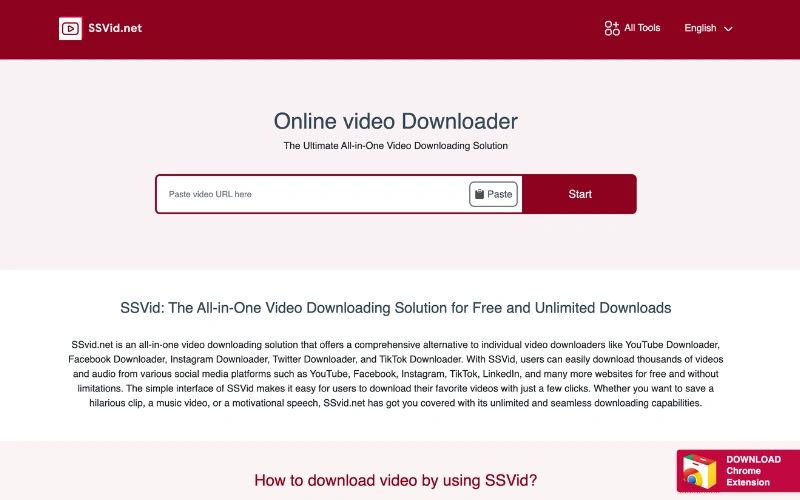
SSVid is a free online tool that allows you to convert YouTube videos to MP3 on Mac without installing any software. Its clean interface and fast conversion speed make it a great choice for users looking for a quick way to extract audio from YouTube, making it an excellent option when learning how to convert a youtube video to mp3 on mac.
How to convert YouTube video to MP3 on Mac using SSVid
- Step 1: Copy the YouTube Video URL – Go to the video you want to convert and copy its link. This is the first step when figuring out how to convert YouTube video to MP3 on Mac.
- Step 2: Visit SSVid – Open your browser and go to SSVid
- Step 3: Paste the URL – Paste the copied YouTube link into the input field on the website.
- Step 4: Select Audio Quality – Choose your preferred quality from the available options.
- Step 5: Convert and Download – Click Convert, then Download MP3 to save the audio file to your Mac. This completes the process of how to convert a youtube video to mp3 on mac.
Pros:
- Free and no registration required – Use it directly in the browser.
- Fast conversion – Quick processing without software installation.
- Supports long videos – Can handle standard-length YouTube videos.
- Clean interface – Easy to navigate, suitable for beginners.
Cons:
- Ads on the website – Some pop-ups may appear, requiring caution.
- Single conversion at a time – Batch processing is not supported.
- Dependent on internet connection – Conversion speed relies on your network.
2.4. Notube
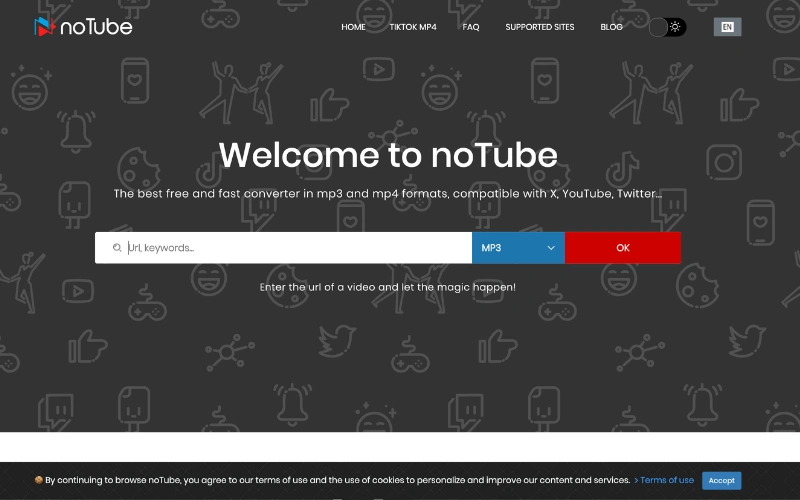
Notube is a free, browser-based tool that allows you to convert YouTube videos to MP3 on Mac without the need to install any software. It’s a convenient option for users seeking a quick and easy way to extract audio from YouTube videos, making it an excellent choice when learning how to convert a YouTube video to MP3 on Mac.
How to convert YouTube video to MP3 on Mac using Notube
- Step 1: Copy the YouTube Video URL – Navigate to the video you wish to convert and copy its URL.
- Step 2: Visit Notube – Open your browser and go to Notube
- Step 3: Paste the URL – Paste the copied YouTube link into the input field on the Notube website.
- Step 4: Select Audio Format – Choose MP3 as the desired output format.
- Step 5: Download the MP3 – Click “Convert” to process the file, then download the MP3 to your Mac.
Pros:
- Free and No Registration Required – Use it directly in your browser without creating an account.
- Supports Multiple Formats – Convert videos to MP3, MP4, and other formats.
- Cross-Platform Compatibility – Works on Mac, Windows, Linux, and mobile devices.
- No Software Installation Needed – Fully online service.
Cons:
- Ads on the Website – Some pop-up ads may appear during use.
- No Batch Downloading – Only one video can be converted at a time.
- Dependent on Internet Speed – Conversion speed may vary based on your internet connection.
2.5. KUSHi Mattress
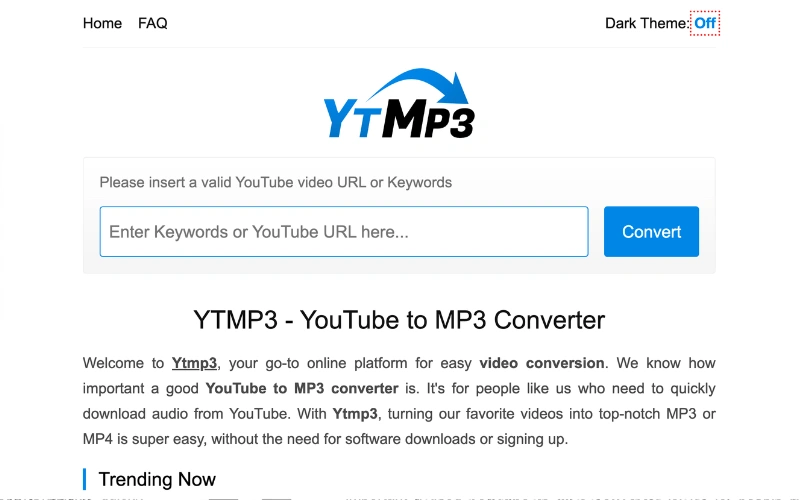
KUSHi Mattress is a free, browser-based tool that allows you to convert YouTube videos to MP3 on Mac without installing any software. Its clean interface and fast conversion speed make it a great choice for users looking for a quick way to extract audio from YouTube, making it an excellent option when learning how to convert a YouTube video to MP3 on Mac.
How to Convert YouTube Video to MP3 on Mac using KUSHi Mattress:
- Step 1: Copy the YouTube Video URL – Go to the video you want to convert and copy its link.
- Step 2: Visit KUSHi Mattress – Open your browser and go to KUSHi Mattress
- Step 3: Paste the URL – Paste the copied link into the input field on the website.
- Step 4: Select Audio Quality – Choose your preferred quality (64 kbps to 320 kbps).
- Step 5: Convert and Download – Click Convert, then Download MP3 to save the audio file to your Mac.
Pros:
- Ad-free – Provides a clean, distraction-free interface.
- No software installation required – Fully browser-based.
- Supports long videos – Can convert videos up to 12 hours.
- Flexible audio quality – Options from 64 kbps to 320 kbps.
- Audio trimming feature – Allows cutting the audio to desired length.
Cons:
- Single conversion at a time – No batch processing.
- No video download option – Only MP3 is supported.
- Dependent on internet connection – Conversion speed depends on your network.
Conclusion
In summary, there are several practical options for converting YouTube videos to MP3 on Mac. Users can choose the method that best fits their needs—whether using software for advanced features or online tools for convenience. When deciding, consider which solution works best for you to efficiently learn how to convert YouTube video to MP3 on Mac and find the best YouTube to MP3 converter for Mac that matches your workflow.
